7 Ways to Organize Your Browser Tabs and Boost Your Productivity
We bet you spend much of your time online on web browsers, which usually means that you often have a bunch of browser tabs open at any given time. Although opening several tabs can be useful in some situations, browser tab clutter can be overwhelming and distracting.
In addition, it can also slow down your computer’s performance—which can take a toll on your productivity. Fortunately, there are several ways to organize your browser tabs and boost your productivity. This article will cover tips and tools to help you overcome browser tab overload.

1. Use a Chrome Tab Manager Extension
Even when you feel like you must open a dozen tabs to work, for instance, when researching and comparing information from multiple websites, you will likely only focus on two or three at any given time. The remaining tabs will just become a distraction while taking a slice of your computer’s RAM. However, you will still need to keep track of these tabs to refer to them later.
Fortunately, there are severalefficient Chrome tab managers that you can use to organize and declutter your open tabs. You can also rely on some of these tools to optimize your computer’s performance by automatically suspending or hibernating inactive tabs.
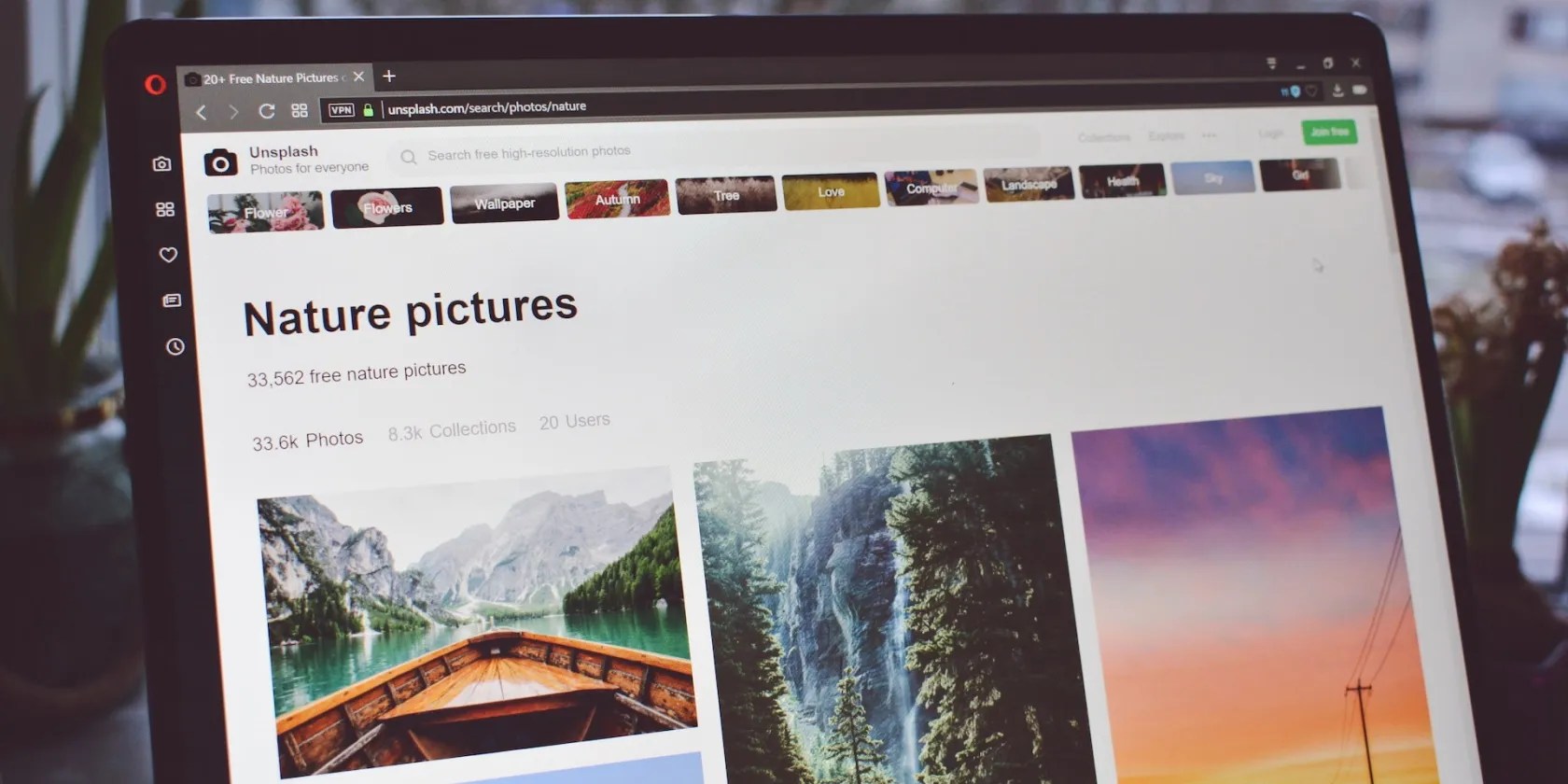
One of the best tab managers you can use isOneTab. This Google Chrome extension lets you convert your tabs into a single list that you can save for future reference. You can name this list, restore individual tabs, or all of them at once at any time. This is ideal for saving tabs that you want to keep track of but don’t necessarily need to have open all the time.
2. Bookmark Frequently Used Websites
Most browsers, including Google Chrome and Edge, allow you to bookmark websites for later reference. This effectively organizes commonly used websites, so you don’t waste time looking for them. For instance, if you have multiple tabs open on a particular topic or category, you canbookmark them in Chrome, Firefox, Edge, Brave, and Safarito access them quickly in the future.
However, while browser bookmark tools are useful,third-party bookmark appscan offer more features and options. A great example isRaindrop.io, which allows you to store, organize and quickly access articles, songs, books, and more. You can create collections to keep related websites in one place and add tags to make items easier to find later. Plus, this tool is available on all major browsers, as well as Android and iOS.

3. Use Read-It-Later Apps
Do you remember those days you worked on something specific and then fell on some interesting yet unrelated articles? Chances are, you opened and read them, but never returned to the task you were working on. Considering you will always come across this type of distraction, you will need to have a system to store any interesting articles that catch your attention while working on something else.
Enter theread-it-later apps. These tools allow you to save articles, videos, and other items for later reference without keeping them open in your browser.Pocketis one of the most popular and best read-it-later services available. This app works on all major platforms and is packed with features such as the ability to save articles to read offline, customize display settings, listen to articles, and more.

4. Use Note-Taking Apps to Keep Your Links
Note-taking apps are one of thosetools you need for a productive day, as they allow you to make quick notes, capture your thoughts, and save tasks. If you are already using a note-taking app, such as Evernote or OneNote, to organize your tasks, you could also rely on it to store any website links you don’t want to lose or forget.
The best part about this approach is that you can quickly access the link from any device at any time. Additionally, you can add other useful information, such as notes, images, videos, and more, to the same note. So, note-taking apps can come in handy whether you want to store links to visit later or organize research for a project.

5. Leverage Google Chrome’s Tab Groups and Reading Lists
Google Chrome’s Tab Groupswork similarly to some bookmark tools that let you add multiple web pages into one group. WithTab Groups, it’s possible to create categories for different tabs and assign a custom name and color to each group. This makes managing multiple related tabs easier. All you need to do is right-click on a tab, selectAdd tab to group > New group, and then give the group a name (for instance,Research Project) and color.
Chrome also has a built-in reading list feature, which allows you to save articles for later. To add a website to your list, right-click on the tab and selectAdd tab to reading list. You can access the web pages you added to your reading list by clicking on theSide paneland selectingReading list.
6. Open Commonly Used Tabs on Startup
Another effective way to manage your browser tabs is automatically opening your most frequently used websites when you launch Chrome. This lets you save time and access your most used websites quickly. To do this, click on the vertical ellipsis“⋮”in the top right corner of your screen, selectSettings > On startup, and chooseOpen a specific page or set of pages.
From here, it’s possible to enter the URLs of the websites you would like to open on startup and clickAdd. You could also selectContinue where you left offif you have a habit of leaving your frequently used tabs open.
7. Manually Close Unused Tabs
One of the best ways to manage browser tab clutter is to avoid opening more tabs than necessary and closing unused tabs regularly. you could start by challenging yourself to follow the one-tab rule, especially when you need those deep-focus work sessions.
This is an effective productivity tip that lets you channel your focus on one website or task at a time. If you must open more than one tab, you should at least ensure that it is related to the task you’re working on and close it down immediately after you finish. This will reduce distractions and help you stay organized.
If you find this challenging, you can use a Chrome extension calledMomentumto remind you to stay focused. The extension lets you add a list of things you wish to focus on, and each time you open a new tab, it will display a beautiful photograph, a quote, or your preset area of focus.
Regain Control of Your Browser Tabs and Boost Your Productivity
Managing your browser tabs is essential to staying productive and organized. You can avoid unwanted distractions, reclaim your focus, and optimize your workflow with the right strategies and tools. Try the tips above to help you save time and maximize productivity while browsing the web.
If you’re a multi-tasker, you love tabs. Maybe a little too much. Here are the top extensions that will help you deal with the tab overload.
You’re conveying the wrong meaning when you send these emojis.
Love fades, even for the best open-source darling.
It’s not super flashy, but it can help to keep your computer up and running.
Lose your laptop without this feature, and you’ll wish you had turned it on.
ensure you don’t miss these movies and shows before Netflix removes them.
