How to Create a 2D Map of Your Room With LiDAR
Due to the precision required in various fields, such as agriculture, archeology, and transportation, lasers are often used for purposes such as obstacle avoidance, map construction, or even autonomous navigation.
Let’s look at LiDARs, how they work, and how you can use them to create a 2D map of your space.

Things You Will Need to Scan Your Room
Following are the pre-requisites to create a 2D map of your room:
What Is LiDAR?
LiDAR, or Light Detection and Ranging, It can also be found by another name, LADAR (Laser Detection and Ranging) an active remote sensing technology that measures distance using light in the form of a pulsed laser. The technology works by shining an optical pulse at a target and measuring the characteristics of the reflected return signal.
The system measures the time the beam takes to return. In general, it is a distance meter. The optical pulse’s width can range from a few nanoseconds to several microseconds, and it can target a variety of materials.
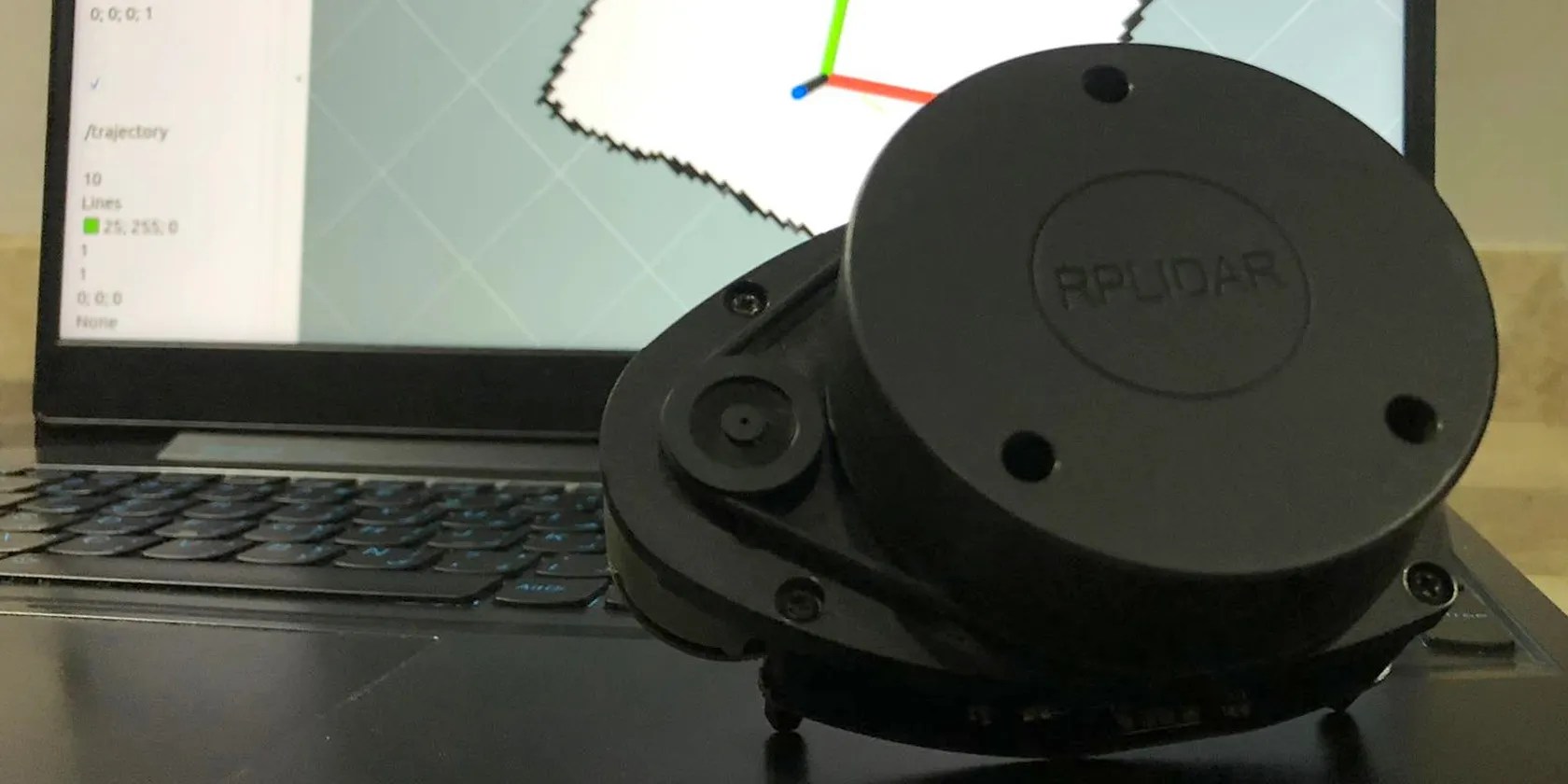
System Connection and Laser Data Acquisition
RPLIDAR A1, a low-cost LiDAR sensor suitable for indoor robotic applications, will be used in this case. It has a 360-degree scan field, a 5.5hz/10hz rotating frequency, and a ranger distance of 8 meters. The LiDAR has a range scanner system, a motor system as well as a communication interface (serial port/USB).
The system measures distance data at more than 2000 times per second and with high resolution distance output. Consequently, it requires the use of several tools to process and visualize the data. For example, you can use the SlamTech RoboStudio tool or the ROS provided package.

ROS(Robot Operating System) is software used by a global open-source community of robotics hobbyists dedicated to improving and making robots available to everyone. It was initially developed by Eric Berger and Keenan Wyrobek at Stanford University. ROS also lets you visualize sensor data, create interfaces, and use tools like Rviz and the Gazebo simulation engine.
With ROS, you will be able to easily separate your code into packages containing small programs, called nodes. Those nodes are connected via topics over which they send and receive messages.

In this project, you will use rplidar_ros, a ROS package that is specifically designed for LiDAR data collection. The hector_slam package will be used later for map creation.
Step 1: ROS Installation
Afterinstalling Ubuntu Server, open your terminal and run the following command to ensure your Debian package index is up-to-date.The difference between update and upgradehas already been covered.
The following step is to install ROS.

you could test ROS by running theroscore, which will serve as proof of proper installation.
Step 2: Getting Your First Scan
First, run the following command to install therplidar_rospackage:
Therplidar_rospackage includes the scripts and launch files required to obtain and visualize LiDAR scanning data.
Once you’ve completed your software, connect your LiDAR to your PC via the USB port. The LiDAR will begin to rotate, but it will not emit any laser unless you run the following command which calls a ROS launch file.
By running this command, you can see the reflected distances that are published in a topic called /scan.
You should see a representation of the unprocessed laser scan data in your terminal:
To visualize that data, open another terminal, making sure not to close the other running terminal that is retrieving data from the laser scanner, and launchRviz, the visualization tool.
Change theFixed FrametoLaser, then click theaddbutton in the bottom-left corner of the window and selectLaserScan. Finally, set the LaserScan topic to/scan, and you’ll be able to see your real-time LiDAR scan.
If you are having trouble getting your first scan, It could be because your device is not authorized to communicate data through serial. To fix this, run the following command and then continue with the previous steps.
Step 3: Launch Mapping
After you’ve tested your LiDAR and confirmed that it works properly, the next step is to begin scanning your region of interest. For this, you will need an additional package called Hector Slam (where “Slam” stands for “Simultaneous localization and mapping”).
As before, execute the following command in order to install that package:
Before running the scan, change a few parameters as shown below. Search for tutorial.launch in the hector_slam package by using theroscdcommand.
The commandnanowill let you open your file and edit it.
You might encountera Linux file permissionerror which can be solved by this command:
Here is a sample of the execution:
Image Credit : Walid Brini
The next step is to change the lines as shown below:
The final step is to execute this line.
Start moving your LiDAR slowly around your room for the best results because creating maps is most effective when moving slowly. You can turn on your trajectory and experiment with the laser scan settings.
you could utilize indoor SLAM to scan the entire house using a laptop and a LiDAR as shown in the video below. Outcomes can be improved by integrating additional sensors, and then combining the data from both sources.
Step 4: Saving and Editing Your Map
Run the following command once you’re finished with your scan to save the map:
In this scenario,imagemagickcan be used to convert the map to a PNG image file, run both of these commands to complete the installation and the conversion.
Get More Use From LiDAR
Using a LiDAR and a PC, you were able to perform a 2D scan. You can improve your scan by adding a depth camera, such as the Kinect, and integrating the two types of data collected.
The same technology may be found in some high-end iPhone and iPad models, where the LiDAR is integrated into the camera module on the device’s back, allowing for the development of 3D maps, distance measurement, and augmented reality applications.
There’s a lot of new smartphone camera technology floating about, but what is ToF and LiDAR, and how do they differ?
It’s not super flashy, but it can help to keep your computer up and running.
These are the best free movies I found on Tubi, but there are heaps more for you to search through.
Some subscriptions are worth the recurring cost, but not these ones.
OneDrive is one of the best, but it has a catch.
One casual AI chat exposed how vulnerable I was.
