How to Edit JPEG Files in Adobe Lightroom CC: A Step-by-Step Guide
Whether your camera’s SD card has malfunctioned or you simply don’t want to spend a lot of time tweaking your pictures, JPEG files allow for easy editing. What’s even better is that you’ve got much more flexibility when it comes to adjusting your pictures on the go.
Several platforms can help you edit JPEG files to great effect, but Adobe Lightroom CC is arguably the best. You can access multiple handy features, such as color grading and lens correction. Moreover, you can alter your photos from your smartphone, tablet, or computer.

Today, we will give you a step-by-step guide for editing JPEGs with Adobe Lightroom CC.
How to Get Adobe Lightroom CC
Before we look at how to edit JPEG photos in Adobe Lightroom CC, we’ll show you how to get the program. You’ll need an Adobe Creative Cloud account, and we recommend checking outwhat Adobe CC includesbefore continuing.
Lightroom CC is available in the Photography Plan, which starts at $9.99/mo and also features Photoshop and Lightroom Classic. Alternatively, you can purchase the Lightroom subscription for the same price.

To purchase Lightroom CC:
If you choose the complete Creative Cloud suite, considertaking some simple steps to master Adobe CC.

How to Edit Your JPEG Photos in Adobe Lightroom CC
Once you’ve bought Lightroom, you’re ready to start editing your JPEG pictures. We’ve broken the following sections into different subcategories so that you can follow along more easily.
1. Transferring the Photos From Your Camera
Whether you’retransferring photos from an iPhone to a PCor opting for an alternative to begin editing your images, you have plenty of options. One possibility is to download your camera’s remote app and import the images via Bluetooth. The process might differ depending on your manufacturer, but you can then add these to Lightroom from your camera roll.
Alternatively, you can go toFile > Add Photos(desktop) orthree dots icon > Add Photos(smartphone/tablet). Choose the pictures you want to import and confirm your choices.

Lightroom CC doesn’t let you preview your images, and that’s one of the manydifferences to consider between Lightroom Classic and Creative Cloud.
2. Adding a Preset
Presets are an excellent starting point for editing the colors and brightness in your Lightroom JPEG files, and you can adjust any sliders that you don’t like later. You can add both your own presets (but note that these won’t automatically carry over from Lightroom Classic), along with numerous others created by Adobe and other users.
Here’s how to add a preset to your JPEGs in Lightroom CC:
3. Healing
Sometimes, spots will appear on your photos—and this can happen with both RAW and JPEG files. Most of the time, it’s due to issues with your lens—such as dust particles or water droplets. Thankfully, you can adjust these in Lightroom CC.
4. Lighting-Based Edits
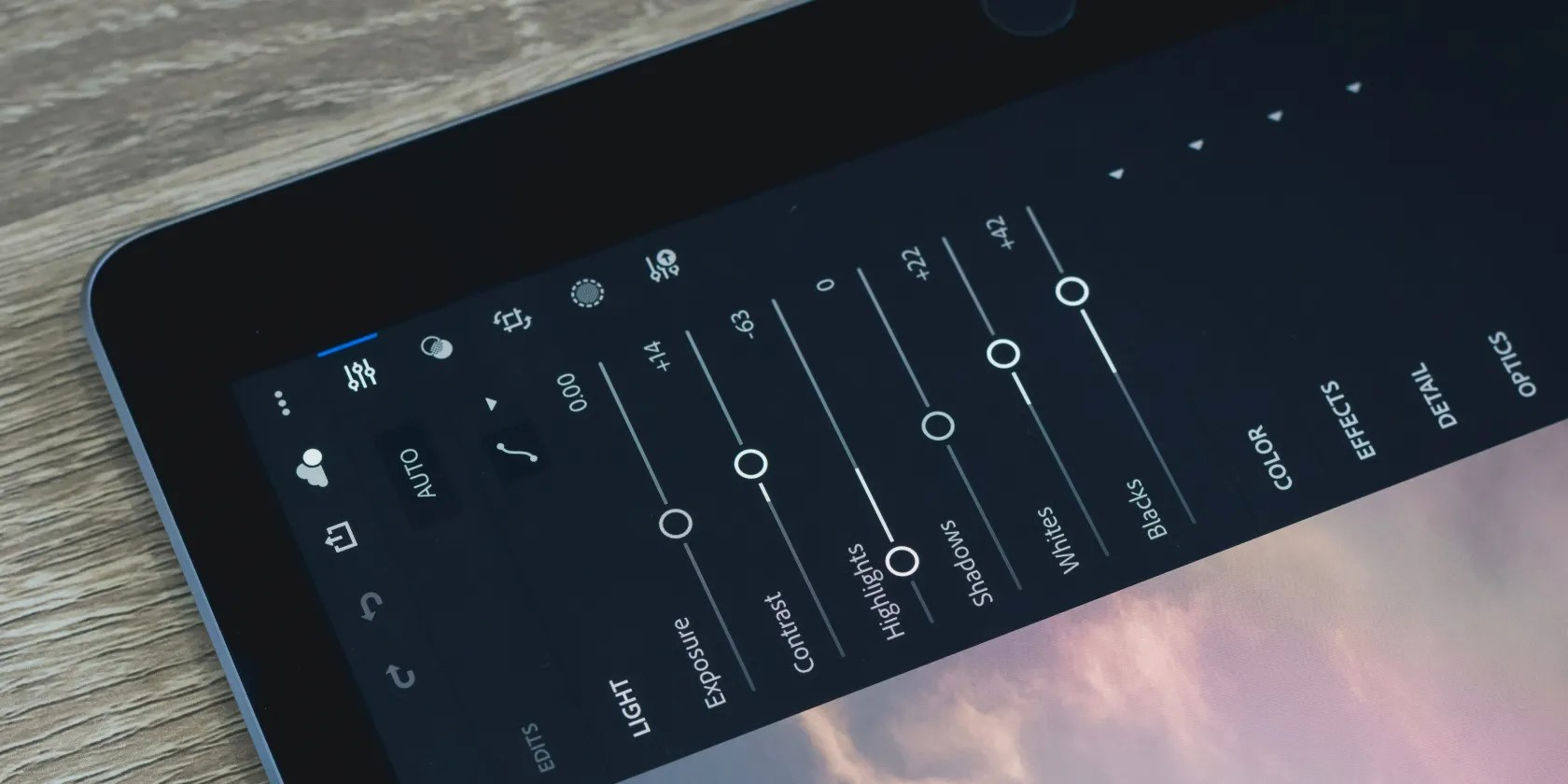
You canfix several common camera problems in Lightroom, and that includes issues you might have with under or overexposed photos. The app lets you make adjustments to your exposure, contrast, highlights, and more. On top of that, you’re able to adjust the Tone Curve diagram to better fit your needs.
To make these lighting-based alterations within Lightroom, follow these instructions:
5. Color Adjustments
Once you’ve made the basic adjustments to your JPEG’s exposure and such, you can make various alterations to the colors in your picture. In addition to tweaking the vibrance and saturation (both overall and for individual colors), you can color grade your picture.
Let’s start by looking at how you can change the vibrance and saturation of your picture as a whole:
To change the hue, saturation, and luminance for individual colors, expandColor Mix. You can tweak each color by tapping on it.
For color grading, follow these steps:
6. Final Touches
Before you export your photo, it’s worth making the final adjustments that will make your JPEG files really stand out. To crop your image, go to thecropicon and expandAspectto choose your image dimensions. For Instagram, choose 4 x 5.
You can straighten your photo, meanwhile, by tapping the icon under theStraightensection.
To remove chromatic aberration, go toOptics > Remove CA. Here, you’ll also findEnable Lens Corrections.
UnderDetail, you’ll find:
Adjust the sliders for each of the above until you’re happy with the result.
If you want to mask the sharpened areas of your picture, slideMaskingwhile holding onto your image to see the areas you’re affecting; see the screenshot below as an example.
7. Exporting Your File
Once you’ve edited your photos, you’re ready to export them and share your images with the world. it’s possible to also continue your editing if you’d prefer.
To export your JPEG file from Lightroom CC from your tablet or smartphone:
If you want to alter your export settings, go toExport as…and pick your image quality, dimensions, and file type. Here, you can also add a watermark.
To export a JPEG file from Lightroom CC on your computer:
To continue your image in Photoshop, go toFile > Edit in Photoshopinstead. You’ll need to have Photoshop included in your Adobe CC subscription.
Don’t Be Scared to Edit JPEG Instead of RAW in Lightroom
RAW files give you more flexibility in editing your pictures, but JPEGs are handy in situations where you don’t want to spend a long time editing. With Lightroom CC, you have several tools that can help your images look better.
Lightroom CC is also handy for editing on the go. And now that you’ve read this guide, you have a handy workflow for adjusting your pictures and creating results that you’re happy with.
Can’t decide between Lightroom Classic and Lightroom Creative Cloud? We’ll show you how to boost your workflow by using both together.
Unlock a world of entertainment possibilities with this clever TV hack.
Quality apps that don’t cost anything.
The key is not to spook your friends with over-the-top shenanigans.
These plugins will make you wonder why you used Photoshop in the first place.
Obsidian finally feels complete.
