How to Fix the Webcam Camera Error Code 0xA00F4289 in Windows 10 & 11
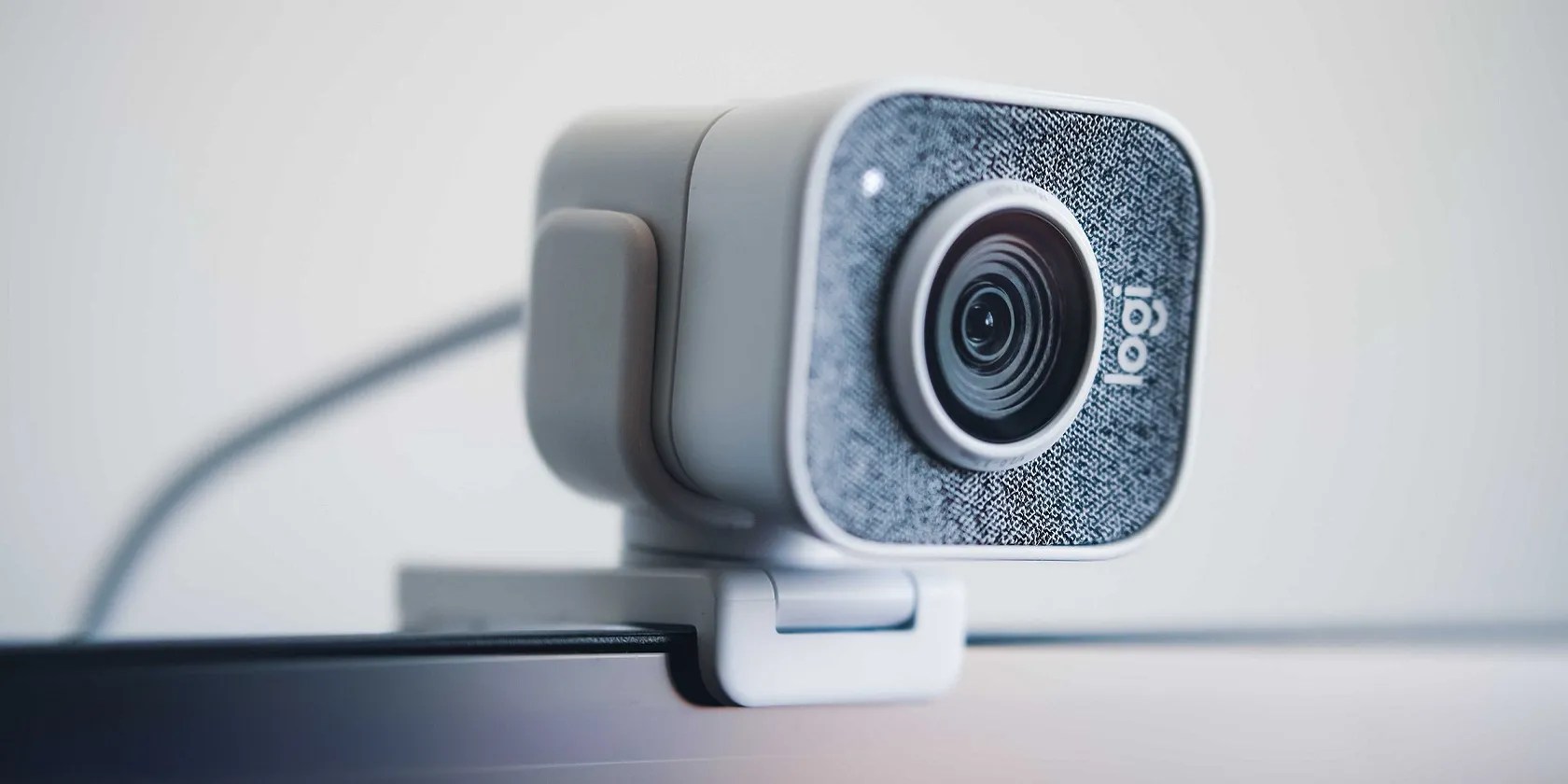
Your PC’s webcam is essential for video calls on conference and messaging apps. However, the 0xA00F4289 error occurs on some users’ PCs when they try to use their webcams with the likes of Skype, Zoom, and the Camera app. Affected apps display a 0xA00F4289 error message that says, “we can’t find your camera.”
Users can’t utilize their webcams with Windows apps for which that error occurs. Is error 0xA00F4289 also preventing camera usage on your PC? If it is, this is how you can resolve the 0xA00F4289 error in Windows 10 and 11.

1. Check the Privacy Settings for the Webcam
The Settings app includes some privacy settings that enable or disable camera access for specific apps. As such, it’s a good idea to check that all the required camera privacy options are enabled first. you could check the webcam’s privacy (access) settings like this:
2. Run the Windows Devices Troubleshooter
Windows has a Hardware and Devices troubleshooter that could be useful for fixing the 0xA00F4289 camera error. However, that troubleshooter isn’t listed within the Settings app. This is how you can access the Hardware and Devices troubleshooter from the Command Prompt:
3. Enable and Run the Windows Camera Frame Server Service
Windows Camera Frame Server is a service that enables webcam video frame access for clients. The 0xA00F4289 error can occur because that service isn’t enabled and running. confirm that the service is enabled and started on your PC as follows:
4. Apply Gentle Pressure Around the Webcam (Laptop Fix)
This is a slightly strange fix that’s worked for many users with laptops. Try gently applying pressure just around the built-in camera at the top of your laptop’s monitor. Apply gentle pressure just around the edge of the webcam’s lens, but don’t press over the lens in any way. Be careful not to press too hard, as that could do more harm than good. This fix often works because error 0xA00F4289 arises when a PC’s camera is loose.
5. Update Your Webcam’s Driver
The 0xA00F4289 error message specifically suggests that you make sure the drivers for your PC’s camera are up-to-date. You can do that by running a scan with Driver Booster or other driver updater software. That scan’s results will show you whether your PC’s webcam driver needs updating. You can also select to update a camera’s driver with driver updater software.
Our guide toupdating drivers with Driver Boosterincludes instructions for how to utilize that software. However, there are other freely available alternatives you can use. We recommend updating camera drivers with the software packages in ourbest free driver updaters for Windowsguide.
You may also be able to upgrade your camera’s driver with optional Windows updates. Such updates become available within an Optional updates section of Settings. This is how you can check for an optional camera driver update in Windows:
6. Reinstall Specific Apps for Which Error 0xA00F4289 Occurs
If this issue only affects one specific app, consider reinstalling the app. There could be an issue with the app reinstalling it will likely address. Follow these steps to reinstall an app for which error 0xA00F4289 arises:
You can’t select to uninstall the Windows Camera app via the Settings app. To remove that app, you’ll need to uninstall it via PowerShell. Check outhow to open PowerShell as an administrator, then input this command for uninstalling Windows Camera and hitEnter:

After removing that app, open the Windows Camera page on the MS Store. ClickGet in Storeapp and select theOpen in Microsoft Storeoption; selectInstallto reinstall Windows Camera.
7. Disable Webcam Protection in Third-Party Antivirus Software
Some third-party antivirus tools incorporate webcam protection features that can block camera access. For example, Kaspersky, Bitdefender, and Norton Antivirus software packages are three that incorporate such a feature. Disabling an antivirus shield via its software’s context menu might not be sufficient to turn off its webcam protection.
If you have third-party antivirus software that could incorporate such camera protection, have a look through its settings tabs instead. Look for and turn off a setting in your antivirus utility that disables camera access for all apps. If your antivirus suite has a firewall, select to temporarily disable that network protection as well. Then try using the camera again.

Get Back to Video Calling Again in Windows
Those error 0xA00F4289 solutions have worked for lots of users who’ve needed to fix that camera issue. So, maybe one will get you back to video calling or whatever else you do with your camera again. A factory reset of Windows 11/10 is another potential error 0xA00F4289 resolution worth considering, but only if none of the above works.
Learn how to factory reset Windows using several methods, including from boot and manually reinstalling.

My foolproof plan is to use Windows 10 until 2030, with the latest security updates.
Not Linux, not Windows. Something better.
Tor spoiled me forever.
Revolutionize your driving experience with these game-changing CarPlay additions.
You can block out the constant surveillance and restore your privacy with a few quick changes.
