How to Install the Unity Desktop on Ubuntu 22.04
GNOME is a much-loved desktop environment in the Linux community. In fact, it is the default desktop environment on several major Linux distros, such as Fedora, Ubuntu, etc.
Prior to using GNOME (since Ubuntu 17.10), Ubuntu used the Unity desktop environment, developed by Canonical.

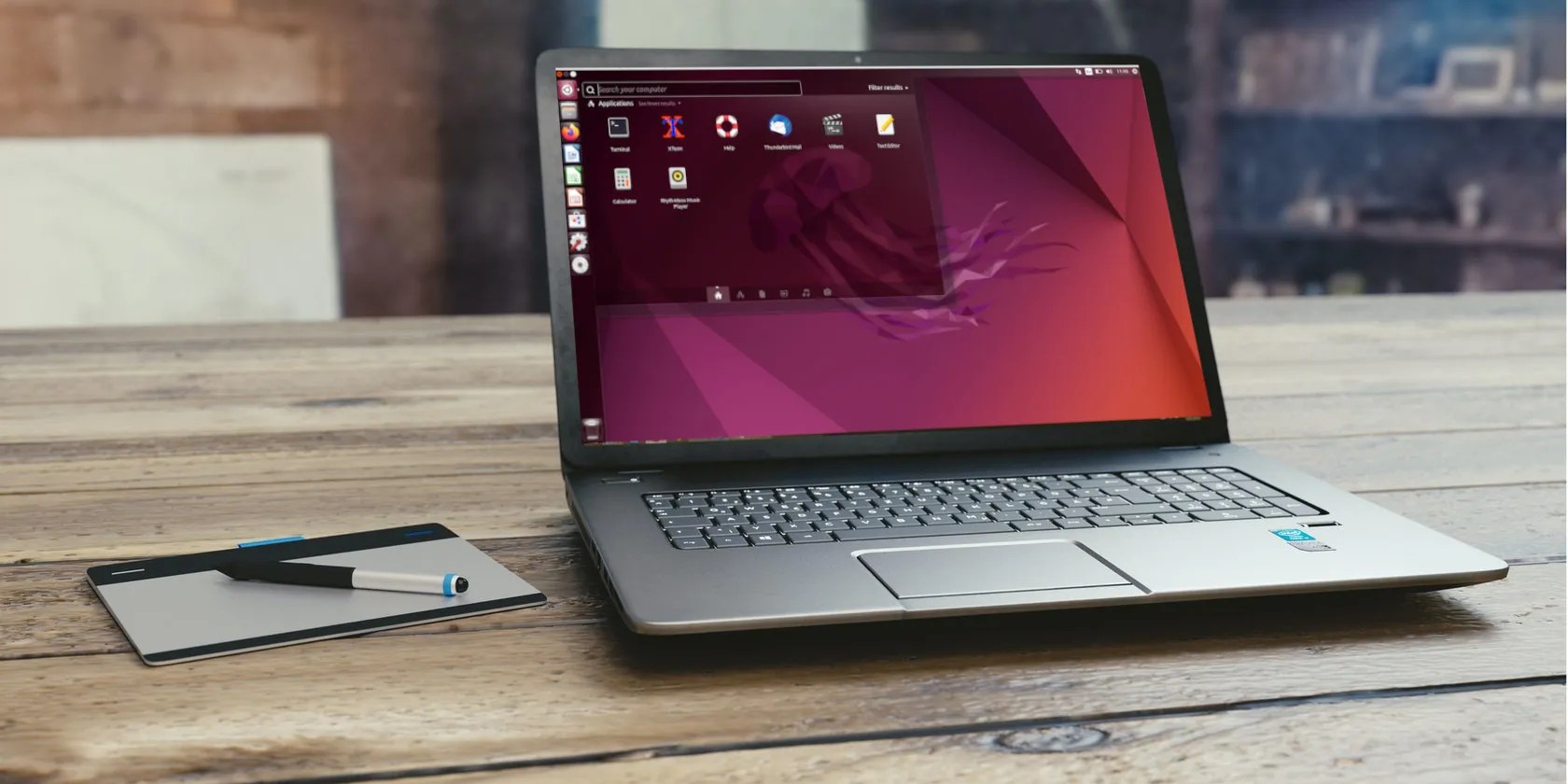
Unity is still loved by many Ubuntu users. If you are a big fan of Unity or just want to try out this awesome desktop environment, here’s how it’s possible to install Unity on Ubuntu 22.04.
What Is Unity?
Unity is a Linux desktop environment that was originally developed by Canonical, the team behind Ubuntu, but is now maintained by the community. Unity was the default desktop environment up until Ubuntu 17.04, but it was replaced in favor of GNOME in Ubuntu 17.10.
Unity resembles GNOME because it is merely a graphical shell forthe GNOME desktop environment. Unity is easy to use, customize, and very intuitive.

Installing Unity on Ubuntu 22.04
There are three variants of the Unity desktop you can install:
The Unity desktop environment is relatively easy to install. First, revise your configured package sources using the following command:

Then install the standard Unity desktop environment because it contains a lot of what we need while maintaining a well-balanced system.
The-yflag will automatically respond with “Yes” to the installation prompt.

Next, you’ll see a prompt asking you to configure the LightDM display manager. A display manager is what controls your login screen. Further, it starts the Linux display server and loads the appropriate desktop environment soon after you log in.
You can only use one display manager at a time in Linux. If you want, you caneasily disable LightDMlater after testing Unity.
Press theTabkey to navigate to theOkoption then pressEnter.
Soon after that, you’ll configure the default display manager. Use theDownarrow key to selectlightdmand pressTabto highlight theOkoption. Then, pressEnterto continue.
In case you are wondering, gdm3 is GNOME Display Manager and as you might have rightly guessed, it’s used by the GNOME desktop environment.
Ubuntu will go ahead to configure both the new display manager and desktop environment for you. The installation might take several minutes depending on your internet speed and PC performance.
Once the installation is complete, go ahead andrestart your Ubuntu systemwith the command:
Your new Unity login screen will now look similar to the following:
Changing the Desktop Environment on Ubuntu
If you have multiple desktop environments installed, you’re able to easily change which one you want to use in the current session from the login screen.
Simply click the Ubuntu icon on the far right-hand side of the login name, and you’ll find a dropdown list of all the available desktop environments. As you may see, Unity is the currently active one.
Apart from the visual changes, Unity also uses some default apps which fit in with Unity’s user interface theme. For example, it uses Atril as the document viewer and Pluma as the default text editor. EOM, VLC Media Player, and MATE System Monitor are some other default applications you’ll find in Unity.
Getting Info About Your Desktop Environment
You caninstall the Neofetch utilityto get system information including the desktop environment in use.
Bring up system information with the command:
Your desktop environment is mentioned next toDE. In addition, other system info is also displayed.
Freshen Up Your Ubuntu PC With the Unity Desktop
Once in a while, you’ll want to freshen up your system or try out a new desktop environment. Unity is a great alternative to GNOME. It is bright, lightweight, and elegant.
If you’re bored with the default customization on a Pop!_OS machine, you can use the GNOME Tweaks tool to personalize your system and make it your own.
Want to add a personal touch to your Pop!_OS 21.04 Linux installation? You can do so easily using GNOME Tweaks.
These plugins will make you wonder why you used Photoshop in the first place.
Make sure you don’t miss these movies and shows before Netflix removes them.
Your phone’s camera app doesn’t show this, so it’s easy to miss.
You’ve been quoting these famous films wrong all along!
Every squeak is your PC’s way of crying for help.
