How to Protect Removable Drives With BitLocker To Go
You can use the Windows 10 and 11 app BitLocker to encrypt your computer’s hard drives. This improves computer security and helps prevent unauthorized access to your data. When BitLocker is enabled on a drive, new files are automatically encrypted. But if you copy those files onto a removable drive, they are automatically decrypted.
BitLocker To Go provides a solution to this problem, allowing you to keep your removable drives as safe as your PC hard drive.

Where Can I Use BitLocker To Go?
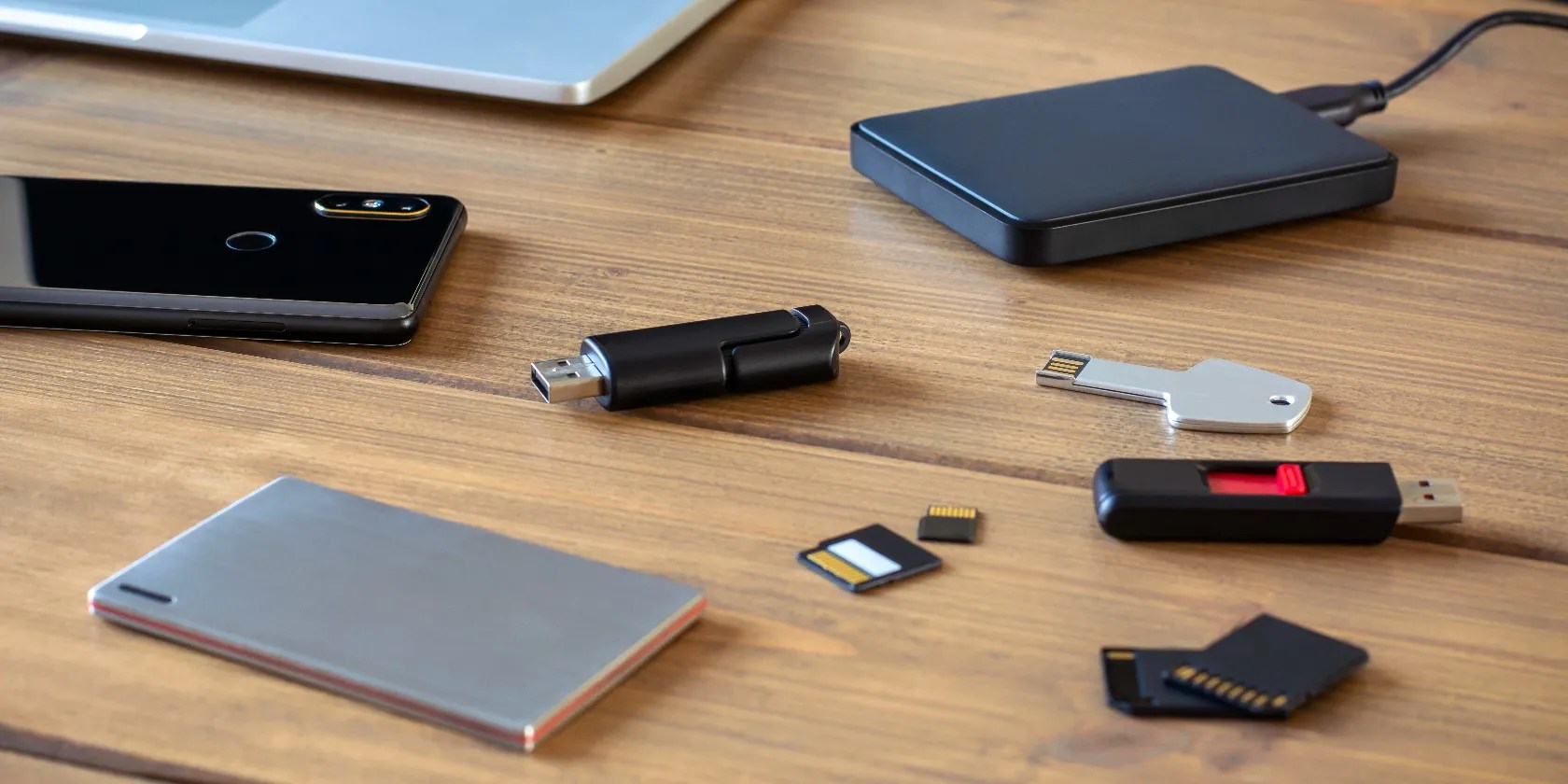
you may use BitLocker To Go on most types of removable storage media. This includes USB flash drives, SD and MicroSD cards, and most external hard disks. Any external storage media that uses the NTFS, FAT16, FAT32, or exFAT file system should work.
If you have partitioned an external drive, the partition you want to protect must meet certain requirements. These include being the active partition, not being encrypted by other means, and must be at least 250MB in size.

Internal hard disks and fixed data drives will need to use BitLocker, rather than BitLocker To Go. Our guide toprotecting internal drives with BitLockerexplains more.
How to Enable BitLocker for a Removable Drive
BitLocker To Go needs to be set up on each drive individually. Make sure the drive meets the requirements above, and connect it to your computer. Ensure it mounts correctly and is recognized by Windows. With that done, you can start setting up BitLocker To Go on the drive.
Drives encrypted with BitLocker will be displayed with a padlock icon when viewed in My PC. When you next insert and try to access the drive, you will be prompted to enter the BitLocker password.

How to Disable BitLocker for a Removable Drive
If you decide you no longer need the removable drive protected with BitLocker To Go, you can easily remove it again.
The drive will then be decrypted and is no longer protected by BitLocker. Unless it is a very large capacity drive, the decryption process will only take a few seconds. You can alsosuspend or disable BitLockeron your main drive if you like.

How to Back Up Your BitLocker Recovery Key
The BitLocker recovery key is used to gain access to the drive if the password is forgotten. Keeping your recovery key safe is obviously essential. During BitLocker setup, you will be given three options for backing up your recovery key.
1. Save to Your Microsoft Account
You will need to be using Windows with a Microsoft account for this option to be available. If using a local account on your PC, you can’t save the key to a Microsoft account. Recovery keys are all stored together in a list, with the drive or device name displayed with the key for identification.
2. Save to a File
This saves the recovery key to a simple .TXT file. This is obviously not very secure unless the drive the file is stored on is protected. One way to keep the file safe is to store it on a spare USB drive. Keep this in a secure place, not plugged into your computer.
3. Print the Recovery Key
you’re able to also print the recovery key if you have a printer connected. This is potentially the most secure recovery key backup method for most people. With the key stored on paper, there is no realistic chance of someone outside your household seeing it. Just be sure to keep it in a safe place, so you don’t lose the printout
To learn more, take a look at our guide onfinding your BitLocker recovery key.
Disable BitLocker To Go With Command Prompt or PowerShell
You can use Command Prompt or PowerShell to disable BitLocker To Go on a removable drive. This can be useful if the encrypted drive is not showing up on the BitLocker management screen for some reason.
If you prefer, you can use PowerShell instead of Command Prompt.
Protect Your Removable Drives With BitLocker To Go
BitLocker is built into Windows 10 and 11 and offers you a simple way to increase the security of your hard drives. When you also use BitLocker To Go on your removable storage, such as USB flash drives, your files are more secure even when being moved.
Ever heard that quote about trying to explain how a television works to an ant? I’m not calling you an ant, even though you are hard-working and enjoy the occasional sip of aphid milk. What I am saying is that I’m going to explain how Windows BitLocker works, without you having to have a degree in computer science and cryptography experience.
The best features aren’t the ones being advertised.
Windows is great, but adding this makes it unstoppable.
These are the best free movies I found on Tubi, but there are heaps more for you to search through.
Revolutionize your driving experience with these game-changing CarPlay additions.
Tor spoiled me forever.
