How to Set Up Voice Recognition on Your HomePod mini and HomePod
An Apple HomePod mini or HomePod can do much more than just play your music. Harnessing the power of Siri, you can do more tasks like make phone calls, send and receive messages, and more.
But with voice recognition, everyone in your home can better personalize their Siri experience. We’ll show you how to set up voice recognition on your HomePod mini or HomePod.

Why Set Up Voice Recognition?
While your personal iPhone or iPad is tied to a specific account, a HomePod might be used by a number of people in your home.
That might be a problem when someone besides the main account user wants to do something like make a phone call, play music from their own library, or other personal requests that usually work just fine on their own device.
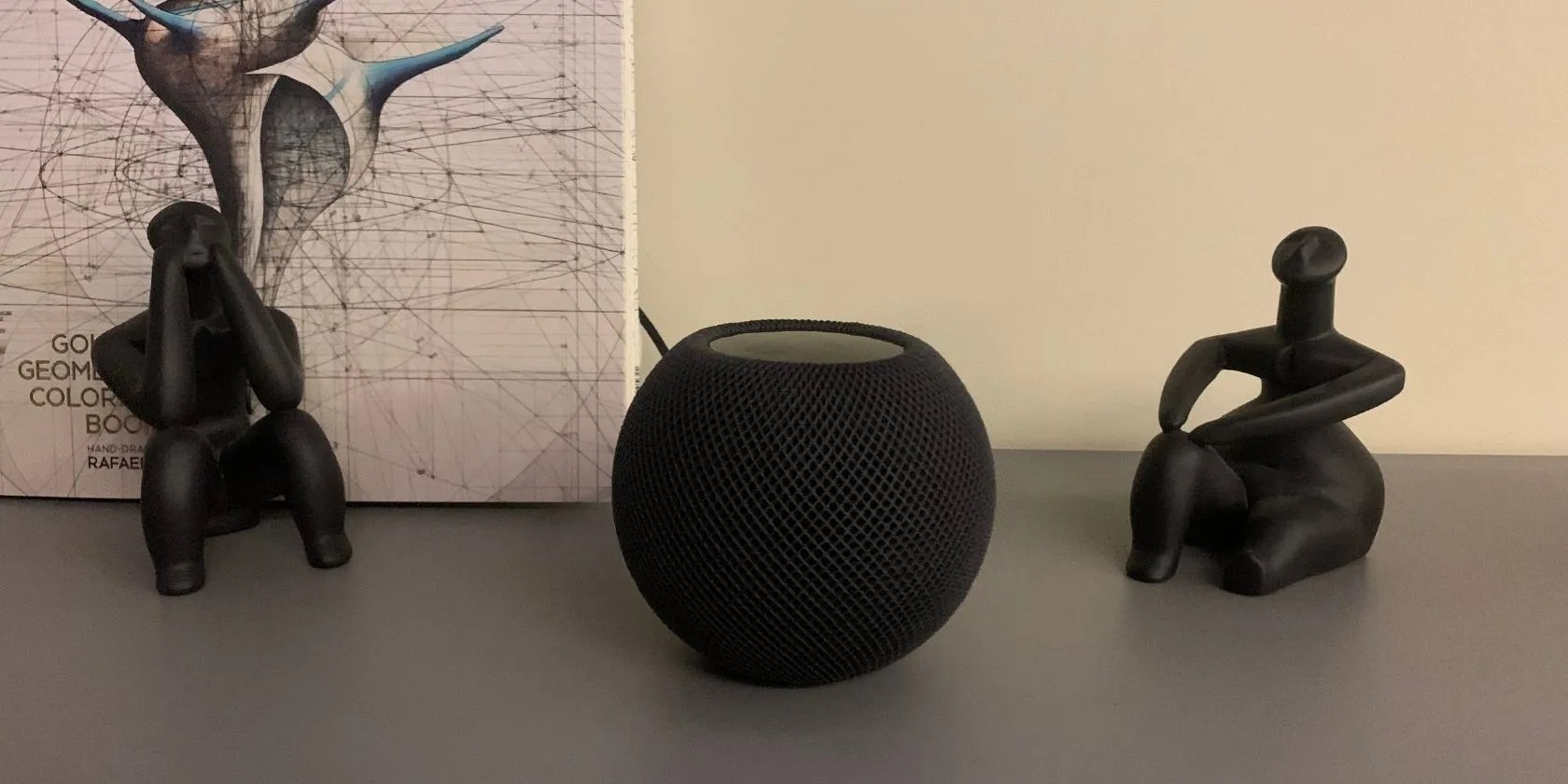
But with voice recognition, up to six users in a home can be recognized. If you have more than that number, they can still use Siri, but the results won’t be personalized and use the primary account user’s information.
To prepare, verify that each person has their own iPhone or iPad and individual Apple ID. Next, make sure that the HomePod or HomePod mini has beenupdated to the most recent software.

Finally, invite the other person toyour Home using the Home app.
Set Up HomePod or HomePod mini Voice Recognition
To begin, on your iPhone or iPad, go toSettings > Siri & Search. Make sureListen for “Hey Siri”is toggled on. Next, head toSettings > [Your Name] > Find My. Confirm thatShare My Locationis turned on.
In theMy Locationsection, chooseThis Device.

Next, open the Home app and select theMorebutton andHome Settings. In thePeoplesection, tap your user profile.
Turn onRecognize my Voice. With that turned on, Siri will know your name, access your personal music library, Apple Music account, and other streaming services. You can also use Find My and control smart home accessories.

You can then also choose to toggle onPersonal Requests.
Doing that provides a much more customized experience as it harnesses Siri commands that use info from your apps on your iPhone or iPad. That includes Apple stock apps like Messages, Reminders, Contacts, and more along with third-party apps compatible with Siri.
In a home with multiple speakers, you can turn on or off Personal Requests for each one.
Just to note, some requests might require authentication. Look for a notification on your iPhone to do that.
For even more personalization on a HomePod or HomePod mini, there are two additional settings you can choose to turn on. WithUpdate Listening Historyturned on, Siri can suggest and play songs you’ll enjoy.
Control Accessories Remotelywill allow others to control HomeKit devices, like a door lock or smart bulb, when away from home. You’ll also receive notifications when not at home.
Troubleshooting Siri Issues
If Siri on a HomePod or HomePod mini fails to recognize your voice, there are a few steps to try.
Open up the Home app and tap theMorebutton and then homeSettings. Select your name in thePeoplesection and then toggle off and then onRecognize My Voice. Wait a few minutes.
Next, attempt to restart the iPhone or iPad you use with Siri. Also, restart the HomePod mini or HomePod.
Finally, you can also set up the Hey Siri feature on your iPhone or iPad again. To can do that underSettings > Siri & Search.TurnListen for “Hey Siri”off then on. Then follow the on-screen instructions.
Customize Your HomePod mini or HomePod Experience
With just a bit of work, you can easily set up the voice recognition feature on your HomePod mini or HomePod.
And with it active, every Apple fan in your home can enjoy a better Siri experience.
Find out more about the feature that allows you to communicate with others in your home.
Freeing up vital memory on Windows only takes a moment, and your computer will feel much faster once you’re done.
The key is not to spook your friends with over-the-top shenanigans.
Your phone’s camera app doesn’t show this, so it’s easy to miss.
I plugged random USB devices into my phone and was pleasantly surprised by how many actually worked.
Windows is great, but adding this makes it unstoppable.
