How to Transfer Data From Your Android Smartphone to an iPhone 14
Stock Photo ID: 185059379
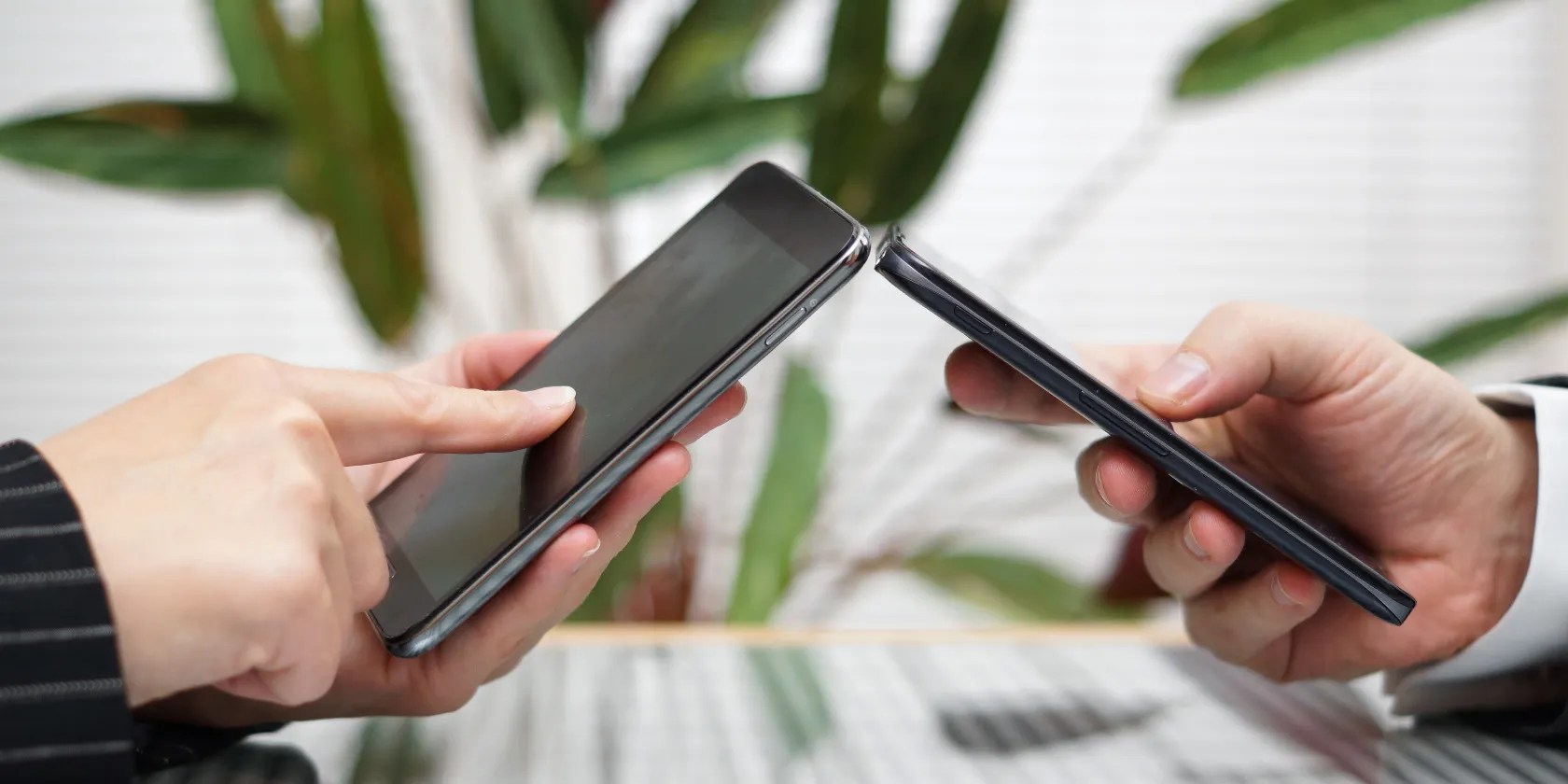
Following Apple’s Far Out event, the iPhone 14 lineup was officially announced. With many people excited to get their hands on the latest iPhone 14, it begs the question of how Android users can transfer their existing smartphone’s data to the iPhone 14 handset.

For iPhone to iPhone users, the process is simple since all you need to do is place your old and new iPhones next to each other for the data transfer to begin.
However, transferring data from Android to iPhone can be a lengthy process that’s a little daunting.

Using Move to iOS
With a new iOS device and an old Android smartphone, you can transfer data over to your new iPhone 14 using the Move to iOS app. Here’s how:
As you can see, the steps to transfer data from Android to iOS are quite lengthy, and could easily be confusing. Not to mention, if both phones aren’t connected to a power source and the Wi-Fi connection isn’t strong, you could encounter an issue with the transfer process.

However, one of the most frustrating aspects of an Android to iOS transfer is that not all settings or apps get transferred. For example, songs saved to your phone’s memory, call logs, ringtones, and so on. Similarly, this process only works if you’re setting up an iPhone for the first time—not an already-operating iPhone.
Use AnyTrans to Transfer Data From Android to iPhone
Whether using the Move to iOS process is simply too time-consuming, or you’re encountering problems where the data doesn’t transfer successfully,AnyTranscan help you.
Using AnyTrans on a Mac or Windows PC is free and simple to follow:

As you can see, usingAnyTrans to transfer data from Android to iPhoneis much quicker and pain-free compared to using Move to iOS. But, there are other benefits to consider rather than it just being faster.
For example, AnyTrans covers most types of data on Android phones, works whether your iPhone 14 has been set up or not, and supports all Android devices. You’ll also find that your existing data on your iPhone 14 won’t be erased since AnyTrans can skip duplicated content automatically. Similarly, any albums on your Android phone will remain even after being transferred to your iPhone.
More Than Just a One-Time Tool
AnyTrans isn’t just a one-time use tool for data migration. Instead, you can use it as an iPhone manager, allowing you to back up data, create custom ringtones, upgrade/manage iOS apps, and even mirror your iPhone screen to your computer.
It’s free to download and takes a matter of seconds to transfer your Android data to your new or existing iPhone.
The iPhone 14 may not have all the bells and whistles as the iPhone 14 Pro, but it’s the best value-for-money iPhone for most people.
Free AI tools are legitimately powerful; you just need to know how to stack them.
Don’t let someone else take over your phone number.
Flagship price, mid-range phone.
Unlock a world of entertainment possibilities with this clever TV hack.
Taming data is easier than it looks.
