How to Use Advanced Settings on the Amazon Fire TV Stick
Once you have finished the initial setup of your Amazon Fire TV Stick, there are many useful or necessary settings to get the most out of your streaming experience.
For example, if you have a data cap on your internet usage, you might want to be notified before you go over your limit. It’s also good to know about other easy tasks, like customizing your Live TV guide, or forcing an update.

We’ll show you some of the advanced Settings on your Fire TV Stick.
How to Get to Fire TV Settings
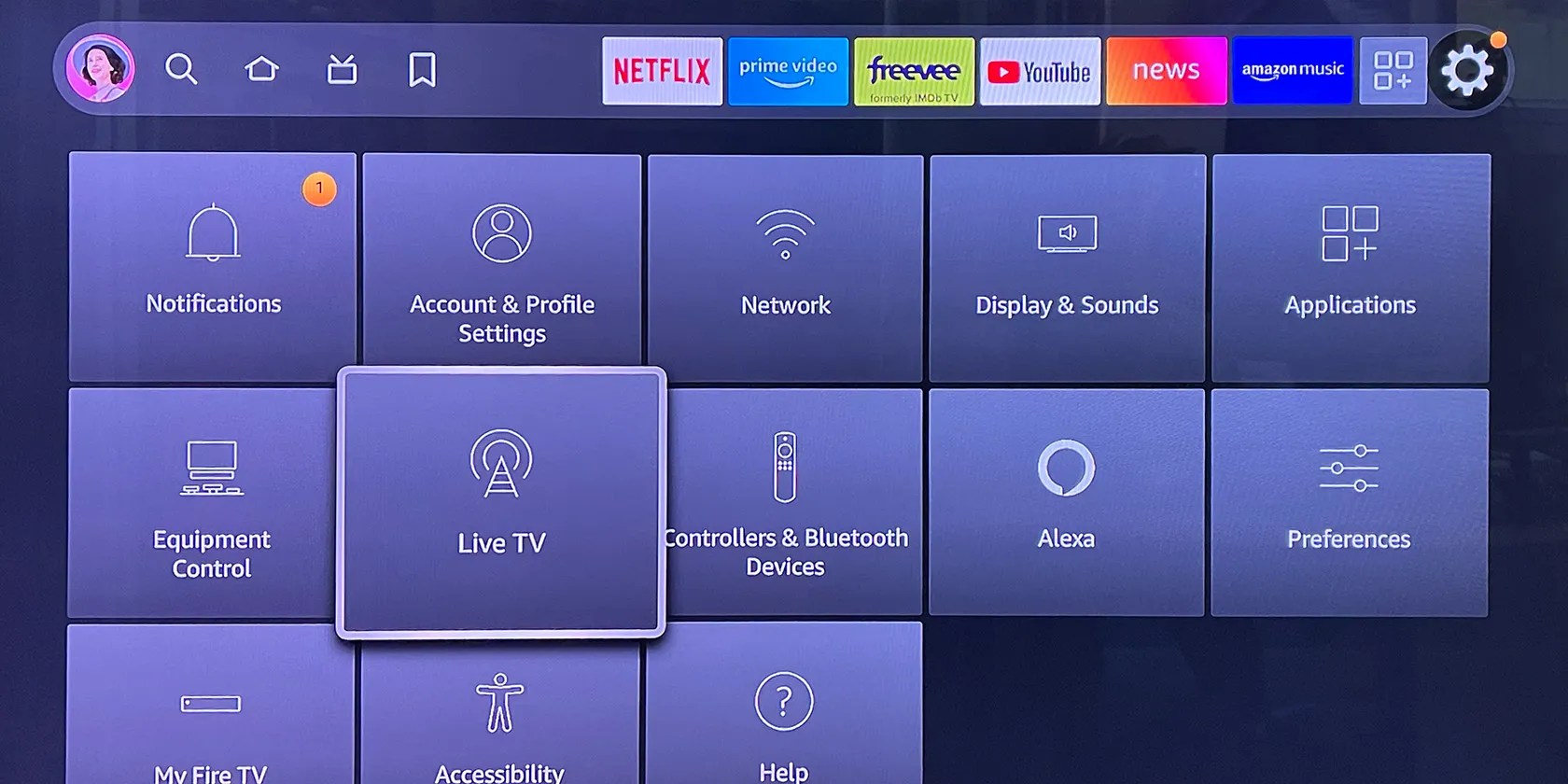
There are a couple of ways to display the Settings menu. Go to the gear icon in the header on the home screen.
Bring up the Quick Menu by holding down the home button on the remote for 3 seconds.

Or, you could say, “Alexa, launch settings.”
Once in the settings section, you may do the following:

And there are plenty of extratips and tricks available on Fire TV.
How to Customize Your Live TV Guide
The Fire TV’s Live TV Guide lets you see all your linear live TV channels in one guide. Taking a little time to set up your favorite channels from each of the sources will save you time from scrolling through channels you never watch. Also, by going through the list of channels, you won’t get the same channel from two different sources.
Managing Feature Content Audio and Video in Fire TV Banner
At the top of the home screen is a banner with feature content—shows and apps that are trending, or you might like. A video plays with sound. Listening to a looped repeat of the preview can get annoying after a couple of rounds. Luckily, you can turn off the video and audio.
Sync Recent Prime Video Content With Other Devices
If you watch Prime Video on other devices as well as your Fire TV, you’ll want to be able to pick up where you stopped playing on the other device. While it should be turned on, if you aren’t seeing what you watched on Prime Video, you might want to check that this setting is turned on.
How to Disable In-App Purchases on Fire TV Stick
Many apps have add-ons like content purchases, premium subscriptions, or additions to games. To prevent children or others from making purchases within apps, toggle this setting to off.
How to Enable Data Monitoring
If your internet provider limits the amount of data that you could use each month, you might want a notification when your data usage is getting close to the point where you may be charged. Although you may have set this up during the original setup process, you can turn it on or off, or change your data limits.
How to Enable Accessibility Options in Fire TV Stick
The Fire TV Stick includes a few features to make it more accessible for people with aural or visual impairments. This includesclosed caption subtitles and Audio Description,VoiceView (to read out words on screen), Alexa Caption, high contrast text, and more.
To enable any of these options go toSettings>Accessibility.

Controllers and Bluetooth Options
it’s possible to connect an external device using Bluetooth. This might be useful if you want to add a remote control oruse Bluetooth headphones with your Fire TV.
Screensaver Settings
You can select your Fire TV screensaver options. If you use the Amazon Photos app foriOSorAndroid, your screensaver can display your personal photos.
How to Reset Fire TV Stick to Factory Defaults
At times, you might want to start over and set up your Fire TV stick again. Or, you’ll want to erase all of your personal information including app logins if you give away or sell your device by reverting it to the factory defaults. Note that if you are having issues with your Fire TV, first try restarting or unplugging your device for 30 seconds, as you don’t want to go through the setup process and download your apps again.
The device will then start the reset procedure, which takes about 10 minutes. Once it is done, you may see the same prompt to pair your remote that you saw the first time you set up the Fire TV Stick.
How to Update Your Amazon Fire TV Stick
Amazon releases a software update for its Fire TV Stick every few months. In all likelihood, your Fire TV Stick will automatically download this update during its periodic checks, and apply it. Occasionally, an update won’t roll out to your model right away, and you may be able to update it by checking for the update. Also, if your Fire TV has been disconnected from the internet or power for an extended amount of time, you may want to check for updates when you reconnect it.
Here’s how to check if you are running the latest version of Fire OS and how to update the Fire TV Stick if necessary.
The Fire TV Stick will then check for updates. If an update is available, you’ll be asked for confirmation to apply it.
Once the update is applied, the Fire TV Stick will restart automatically.
How to Turn Off Your Amazon Fire Stick
It may seem odd, but many streaming players never actually turn off. But, they do go into a low-power “sleep” mode after 30 minutes of inactivity.
Here’s how to manually put the Amazon Fire Stick into Sleep mode:
If you want to turn off the Fire TV Stick so that it does not use any electricity, you will need to unplug its USB power cable from the outlet.
How to Turn On Your Amazon Fire Stick
The Amazon Fire TV Stick doesn’t have a physical power button. Be sure you have enabled HDMI CEC on your TV. Pressing the home button on the remote should switch the TV to the Fire TV’s input.
More Fire TV Settings
It’s more enjoyable to use your Fire TV when it is customized the way you like it. Fortunately, it’s easy to access and change its numerous, helpful, advanced settings.
Do you have a new Amazon Fire TV Stick 4K Max? We’ll show you how to get started with the streaming device and remote.
You can’t call this offline, Notion.
Freeing up vital memory on Windows only takes a moment, and your computer will feel much faster once you’re done.
My foolproof plan is to use Windows 10 until 2030, with the latest security updates.
My iPhone does it all, but I still need my dumb phone.
Goodbye sending links via other apps.
