How to Use Emojis in Google Meet
Using reactions in Google Meet is an excellent way to make meetings more inclusive, gather instant feedback, and allow your team to share and interact in a fun way. If you’re wondering how they work, you’re in the right place.
Here, we’ll take you through how to use emojis, including how to adjust your settings to increase their presence or make them more subtle, and what to do if you’d prefer the icons sit out of a meeting.

How to Use Google Meet’s Emoji Reactions
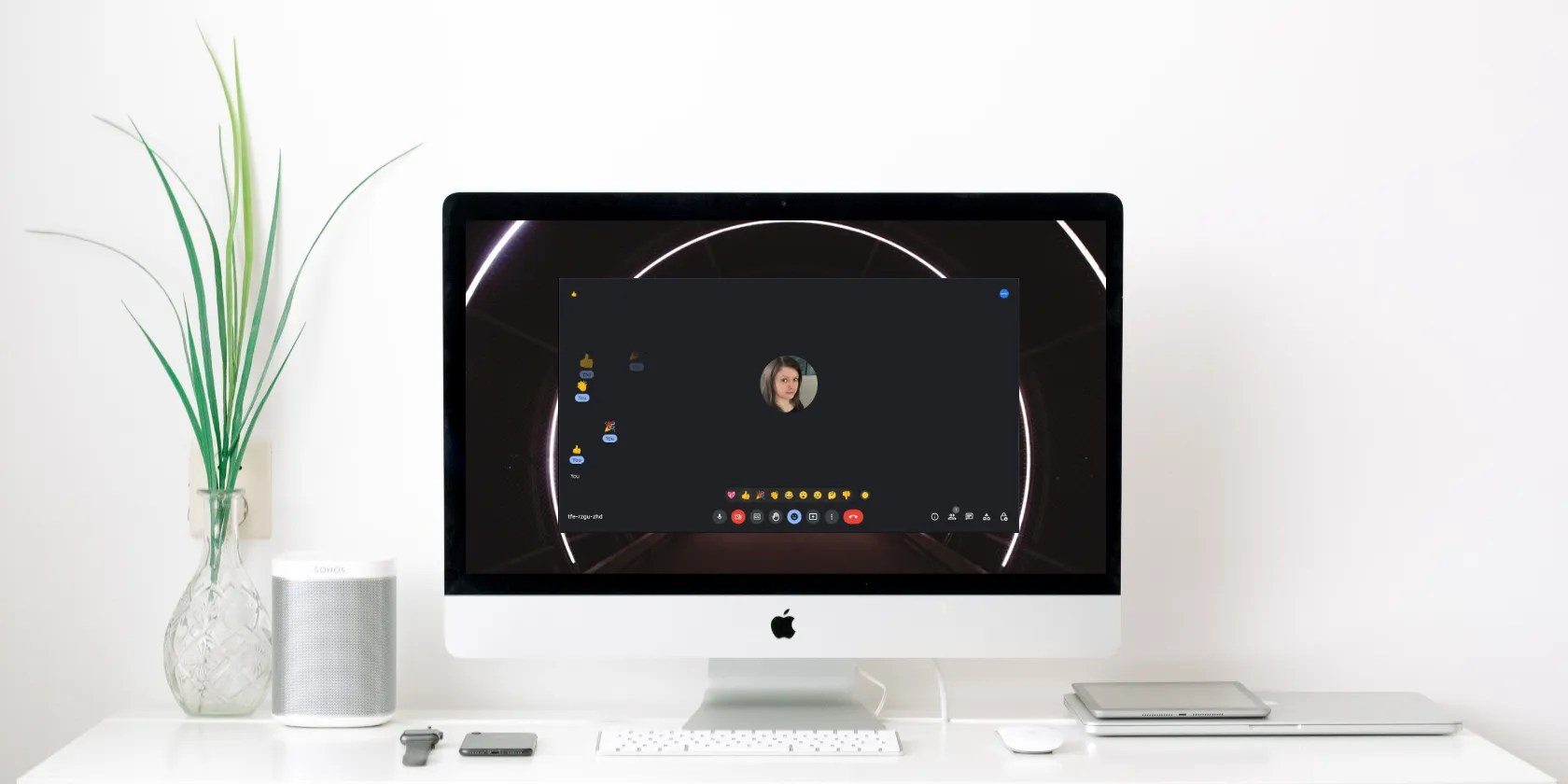
If you’re looking forways to improve your Google Meets experience, emojis or reactions just might do the trick. Once you’re in a call, you can access this feature by clicking the face icon in the bottom toolbar. Doing so will bring up a variety of icons for you to choose from in a range of emotions.
When you or your fellow attendees click a reaction during a meeting, an animated version of the icon will float upwards from the left side of the screen. Similarly, reactions are shown in the corner of profiles so that participants can see which one the other participant used.

If you prefer, you can change the skin tone of your emojis by selecting the yellow circle to the right of the reactions menu and choosing another option.
Reaction Settings in Google Meet
If you want to hide others’ reactions, turn off the icon animation, or set your emojis to make noise, you can do so underMore optionsin the bottom toolbar—it’s the symbol with three vertical dots. Once you clickMore options, go toSettings, andReactions. There, you can toggle the following options on or off:
If you want to do this ahead of time, you cancreate a Google Meet, swap the settings, and your settings should be ready for your next call.

Turn Off Reactions as a Host in Google Meet
The use of emojis and reactions might not always be appropriate for your meetings or could become distracting for some audiences. If you’d prefer to switch them off, you can do so underHost controls. Here’s how:
Once you disable reactions, the emoji icon becomes grayed out, and your guests can no longer access them.

Get Reacting With Emojis in Google Meet
Thanks to reactions in Google Meet, your meetings can be more inclusive and interactive for everyone. You can also get your team’s feedback in real-time as you cover certain topics.
What’s more, there are plenty of ways to change things up individually if you find them distracting or want them to make noise. Plus, it’s helpful that you can disable them in cases where they could take away from the discussion. Overall, they definitely add an element of fun and excitement to everyday meetings.
With well-written agendas in Google Calendar, you can hold more effective meetings. Here’s how.
Your phone is a better editor than you give it credit for.
You can’t call this offline, Notion.
When your rival has to bail out your assistant.
Taming data is easier than it looks.
I plugged random USB devices into my phone and was pleasantly surprised by how many actually worked.
