Quick Links
Apple’s Reminders app is a solid tool for staying organized, but adding tasks feels slower than it should. Without a quick entry shortcut, capturing ideas on the fly can be frustrating—especially when they slip away before you can type them out. Some smart workarounds can fix this.
1Use Siri to Capture Tasks Hands-Free
When it comes to speed, what’s quicker than a keyboard shortcut? Using your voice. Siri is an often overlooked tool for quickly adding tasks or ideas to the Reminders app. If you haven’t been using Siri with Reminders, you’ve been missing out on one of the fastest ways to capture fleeting thoughts or ideas the moment they pop into your head—no typing required.
With the introduction of Apple Intelligence, Siri has become even more powerful, offering improved language understanding and contextual awareness. This means Siri can now better interpret your requests.

Here are a few examples of how you can use Siri to capture tasks in the Reminders app:
Siri, remind me to call Paul when I get home.
Siri, add ‘Buy eggs’ to my Grocery list.
Siri, remind me to call the team tomorrow morning.
Siri, remind me to charge my phone when I get home.
2Set Up a Quick Entry Shortcut for Reminders
If you prefer typing over voice commands for quickly capturing tasks,you can use the Shortcut app for macOSto set up a custom quick-entry keyboard shortcut. This allows you to open Reminders and add tasks with fewer clicks.
To set up a keyboard shortcut for quick entry into Reminders using the Shortcuts app on macOS, start by launching the Shortcut app. The easiest way to do this is by pressingCommand (⌘) + Spaceto open Spotlight Search, typingShortcuts, and pressing theReturnkey.

Click the+button in the top bar to create a new shortcut. Search forRemindersusing the search bar in the top right corner of the screen, and then double-click theAdd New Reminderaction.
Now, customize the reminder action. Click theShow Morebutton next to the action to reveal other options. Then, click the input field next toAdd, start typingask, and select theAsk Each Timeoption. If you only want to capture tasks quickly to organize later, then you may leave the other fields empty.
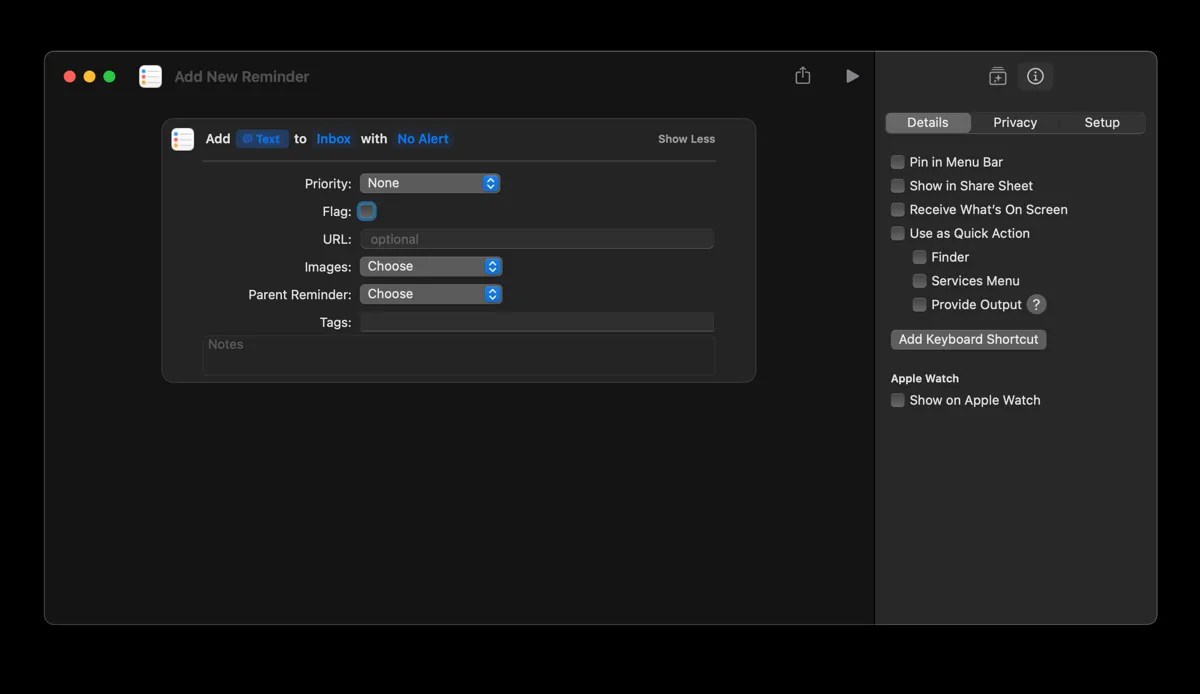
Finally, set a keyboard shortcut. Click thei (information)icon in the top right corner of the Shortcut window, selectAdd Keyboard Shortcut, and enter your preferred keyboard combination, for example:⌥⌘R.
Enable thePin in Menu Baroption in the same settings menu. This places the shortcut in your Mac’s menu bar, allowing you to access it with a single click even if you don’t remember the keyboard shortcut.

Lastly, click theShortcuticon in the top left corner to select an icon and color for this action. Close the Shortcuts window to try out your new keyboard shortcut. This should instantly open a new Reminder window where you can quickly type and save your tasks.
3Use the Reminders Widget for Quick Task Access
While a custom keyboard shortcut is a great way to capture tasks quickly, sometimes a visual shortcut can be just as helpful.Adding widgets to your Macis a great way to do this. The Reminders widget allows you to view your upcoming tasks at a glance and add new ones with fewer clicks. It is also useful if you like to keep your to-dos visible when using your Mac.
Here’s how to add the Reminders widget to your Mac’s desktop:

You can use the Reminders widgets to view and check off tasks. In addition, you can also add new items by clicking the widget to open Reminders.
4Share Items to Reminders From Supported Apps
One of the reasons I use Reminders as my to-do list app is because it integrates seamlessly with other apps on my Mac. Whether I’m browsing a webpage in Safari, reading emails in the Mail app, or reviewing my favorite quotes in the Notes app, I can quickly create a reminder for that item without needing to switch to the Reminders app.
Here’s how to quickly add reminders directly from supported apps:
In Reminders, find the item in the list and click the app icon or double-click (control-click) the link to open it in its original app.
5Install the Reminders MenuBar App for Instant Access
If you want a quicker way to interact with Reminders, theReminders MenuBar appis a great addition to your workflow. This third-party tool adds a Reminders icon to your Mac’s menu bar, giving you instant access to your tasks and lists without opening the Reminders app.
Even better, it allows you to create a system-wide keyboard shortcut for quick task entry, making it easier than ever to stay organized. Here’s how to set up and use the Reminders MenuBar app:
Visit the Reminders MenuBarGitHub pageto download it. Extract the zip archive, then dragReminders MenuBartoApplicationsfor easy access. Launch the app, grant Reminders access viaOpen System Settings, and toggle on theReminders MenuBarswitch to enable it.
You should see a Reminders icon in your Mac’s menu bar. Click the icon to reveal your tasks and lists. Click theSettings gearicon in the menu bar dropdown to customize the app. EnableLaunch at Loginto ensure the app starts automatically every time you turn on your Mac.
You can also set a system-wide keyboard shortcut in theSettingsmenu for quick task entry. For example, you can useOption + Command + Rto instantly capture a new task.
Don’t let another brilliant idea or important task slip through the cracks. Use these tips and tools to turn Reminders into a seamless and efficient capture system on your Mac.
