What Is the Best Way to Learn Notion?
There are many different types of learners. Among them are people who like to dive right in. There are also those who prefer to play it safe and follow instructions.
Really there’s no right way of learning new software as it all comes down to the individual. When learning to use Notion, there are many approaches you can take to help make it a smoother experience. Let’s take a look at them.

1. Learn by Following Along in Notion
Sometimes the best way to learn something new is to jump in by way of following tutorials or guides. Whether you’re using Notion totake organized notesoroutline a workflow, search for resources that best match what you’re trying to do, so the result is something you can continue to build on and use.
As you follow the tutorials, avoid worrying about your pages being perfect. Instead, focus on the basics and get comfortable with the tools using the information in front of you. Then, you can go in and make edits or add extras.
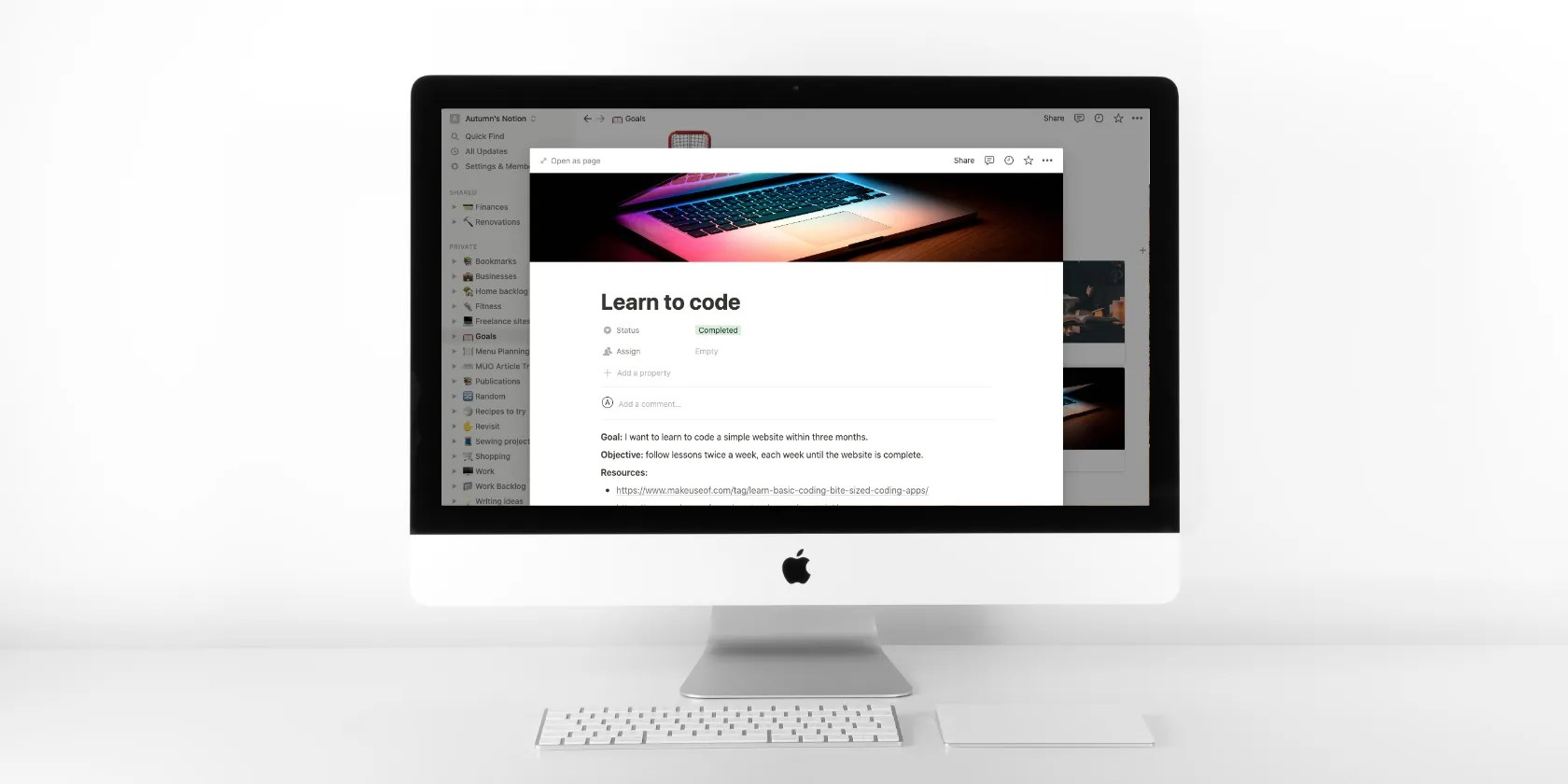
Notion’s website offers a vast resource library with everything from tutorials to webinars. There are also Notion communities it’s possible to join where you may be able to find tips.
2. Learn by Experimenting in Notion
Another way to dive right into Notion is by grabbing one of its many templates, like thecontent calendar, and experimenting with it. Since Notion works a lot like other project management software, combined with a basic word processor, you may already have some of the knowledge you need if you don’t want to read walkthroughs.
Play around with it to see how you’re able to edit and customize the template to fit your own needs, and search for answers if you get stuck. Rather than following tutorials from start to finish, if that’s not your thing, Notion’s website has a help center where you may be able to find short answers to specifics like writing and editing basics or how to use code blocks.

It also helps to envision how you want your page to look first. For example, you know you want to create a content calendar, so you load the template, but before you start clicking around and making changes, you picture what you’d like to add, edit, or take away to make it your own.
3. Learn Using References in Notion
Much like how designers use references for layout and placement, find a Notion page that inspires you and see if you may recreate it. You can find plenty of inspiration using your favorite search engine, the Notion website, and communities dedicated to the software you can join on social media.
A common hurdle for Notion beginners is that there’s simply so much you may do with it that it’s easy to experience decision fatigue or get overwhelmed. Looking at what others create is an excellent way to get beyond that, and you’ll also avoid some smaller decisions like choosing a layout or which properties to use.

Once you’ve recreated the page, use your newfound skills to add extras and make it your own. If you get stuck anywhere along the way, enter your question into your search engine or check out Notion’s resources library for answers.
4. Keep Your Notion Pages Simple and Intentional
At first, it’s easy to get carried away with databases, properties, and all the possibilities of Notion. But as you get comfortable with the software and use it regularly, you’ll notice some of the extras are exactly that—extra.
So why not forgo the additional work, and start with the basics? Before creating a new page or database, consider its main purpose and only add what you need. For example, if you’re creating a database to track your monthly transactions, it may be tempting to add a date column. But if your goal is only to see how much you spent in total and in which categories, filling in the date for each transaction is only an added step.

When using any project management software, less is more. If you have too many steps or ones that seem pointless, it will only create friction and learning curves for yourself and others you invite to work with you.
Notion’s To-do list template is an excellent example of minimal, yet effective. It’s a single database with four columns for task name, due date, assignee, and a simple checklist as a status tracker.
Another thing to note is that you can use Notion and still get the full experience without knowing anything about its API, integrating it with any other app or software, or using widgets.
5. Be Patient When Learning to Use Notion
Notion is a cinch once you get the hang of it, but in the meantime, you’ll want to be okay with getting stuck, making mistakes, and letting things be imperfect. You can go back and fix, edit, or revamp things later.
You also don’t want to rush it and get ahead of yourself, or you may end up doing a bunch of extra work. Take your time, plan what you’d like to do with the software, and learn the tools as you create your pages.
6. Discover New Ways to Use Notion
Notion is technically note-taking and project management software, but really it’s so much more. To get the most out of it, try exploring different ways to use it. Here’s a list of just some of the ways you can use Notion:
Get Learning in Notion
Like anything else, learning to use Notion simply requires practice and patience. If you’re someone who benefits from following steps or instructions, finding a tutorial for the page you’re looking to build is likely the best route.
If you prefer a less structured approach, try your hand at experimenting with templates, or building a page from scratch based on reference. Whichever way you choose to learn Notion, there are many resources to help you along the way.
If you’ve just started using Notion and want to make the most of its features, here are some useful things it’s possible to do in Notion.
This small feature makes a massive difference.
Your iPhone forgets what you copy, but this shortcut makes it remember everything.
Who asked for these upgrades?
Your phone is a better editor than you give it credit for.
Freeing up vital memory on Windows only takes a moment, and your computer will feel much faster once you’re done.
